Moosky AI field guide
How to Turn a Script into a Video with AI: The Script-to-Screen Workflow
Turn a finished script into an AI video: break it into scenes, storyboard cheaply, generate one coherent project, then edit the output.
On this page
How to Turn a Script into a Video with AI
A finished script is the most useful thing you can hand an AI video pipeline, and most people still waste it. They paste the whole script into one prompt box, get a thirty-second fever dream, and conclude the technology is a toy. The problem is that current video models generate one short shot at a time. A script is dozens of shots with continuity between them. Turning one into the other is a workflow, not a prompt, and the workflow has four steps: break the script into scenes, storyboard each scene, generate the scenes with a planner that keeps them coherent, and edit the output like any other footage.
This guide walks through all four, with a worked micro case study at the end: a 300-word SaaS explainer script turned into a roughly 90-second video.
Why a script is the best input you can give the machine
Text-to-video models are easiest to direct when the direction is already structured. A screenplay or a narrated explainer script encodes information for free that a bare idea prompt does not:
- Scene boundaries are already marked, so no one has to guess where shots change.
- Each scene usually has one subject and one action, which is exactly the granularity a video model handles.
- Dialogue or voiceover gives you a fixed duration per scene, which tells you how long each generated clip needs to be.
- Setting and time-of-day appear in the action lines, which are half your image prompt already.
Compare that to "make me a video about our app." The unstructured request forces the model (or you) to invent structure at render time, which is the most expensive moment to make creative decisions. When the script came first, the creative decisions are already made and cheap to change: editing a sentence costs nothing, re-rendering a scene costs credits and time.
Step 1: Break the script into scenes
Take the script and split it into a numbered list where each item is one visual idea. For an explainer, a scene per sentence or per voiceover beat works well. For a screenplay page, each slug line (INT. KITCHEN - NIGHT) is a natural scene.
For each scene, write down four things in one line each:
- Subject and action: who or what is in frame and what changes. "Founder at desk, talks to camera, gestures at monitor" is a scene. So is "cursor clicks the Import button, file list populates."
- Setting and time: one clause. The renderer fills the rest.
- Camera: shot size and movement, in real filmmaking terms. Medium push-in, static lock-off, slow orbit. If a director of photography could execute the line on a real set, a video model can usually attempt it.
- Target duration: read the voiceover aloud and time it. A four-second clip with a nine-second line of narration over it will feel broken no matter how good the clip is.
Keep prompts short. A scene line of 25 to 45 words renders more reliably than a paragraph, and the video-prompt structure that works best (subject, motion, setting, camera, style, in that order) is covered in depth in the AI prompt video generator guide. If you want ready-made phrasing to borrow, the 50 prompt examples library is a decent place to steal camera language from.
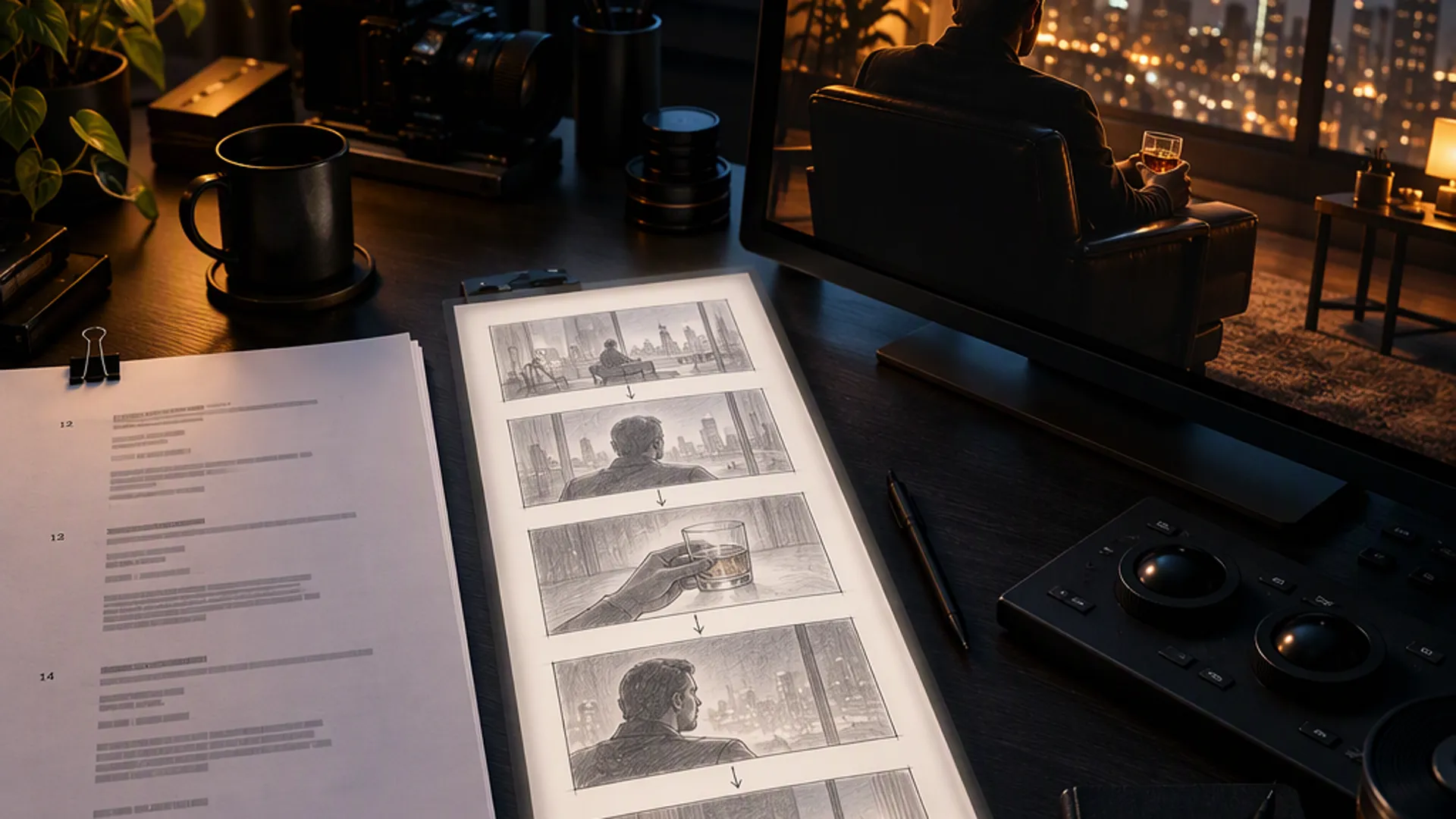
Step 2: Storyboard the scenes, cheaply
Storyboarding sounds like the art-school step people skip. In an AI pipeline it is the cheapest quality lever you have, for two reasons.
First, a sketch or a still image is a far more specific instruction than text. If your scene is "product shot of the app on a phone, floating over a desk," generating a single still image of that composition costs a fraction of a video render. Approve or regenerate the still, then feed the approved frame into the video model as the first frame. Image-to-video gives you composition control that a text-only prompt does not. The full photo-to-video workflow covers that path step by step, including how to prompt the motion on top of a still.
Second, "sketch to video" tools now go directly from rough drawings to moving shots. A stick-figure panel with camera arrows is enough for the model to understand framing and movement intent. You do not need to draw well; you need to draw where the camera is. A rectangle with an arrow through it means "push in" more reliably than three adjectives.
For a multi-scene project, the practical version of storyboarding is: generate one keyframe per scene, put them in order in a doc, and flip through them. If the sequence doesn't read as a story silently, no amount of rendering will fix it. Fixing a keyframe is cheap; the render is where you spend.
Step 3: Generate scenes as one project, not a pile of clips
Here is where script-to-video breaks for most DIY attempts: twelve individually generated clips never quite match. The lighting drifts, the character's face changes between shots, the room in scene 3 isn't the room in scene 2. Stitching them produces a trailer for a movie that doesn't exist.
This is the problem multi-scene generation is built to solve. Moosky's Project Director takes a brief or a script, plans a scene list, and generates the scenes as one project with shared characters, settings, and style, instead of twelve unrelated generations. You review the plan and the per-scene descriptions before anything renders (editing a description at review is free), approve once, and the render runs the whole sequence with continuity across scenes. The full click-path walkthrough shows the plan conversation, the credit estimate, and the takes strip.
If your project is single-shot or you want to drive each render by hand, the video generator runs the same flagship models per clip, and the tool pick matters by scene type: cinematic character scenes favor one model, fast product cuts favor another, and the comparison of the current generation of models lives in the 2026 tools comparison.
Whichever route you take, hold one style cluster constant across all scenes: one lighting choice, one color grade, one texture. "Warm key light, amber grade, light film grain" repeated on every scene prompt is what makes twelve clips read as one video.
Step 4: Edit the output like normal footage
Generated clips are raw footage, not finished video, and they should go through an edit the way footage would:
- Trim every clip to the beat. If the action happens at seconds 2 to 6, cut the dead head and tail.
- Lay the voiceover or music bed first and cut the visuals to it, not the other way around. Duration problems that were invisible per-clip become obvious against narration.
- Add the joins: L-cuts, a fade between locations, text over the establishing shots. An AI video with real edits around it stops reading as AI video.
- Fix outliers by re-rolling only that scene. In a project pipeline you regenerate the one bad scene rather than the sequence, which is the whole economics argument for planning before rendering.
Micro case study: a 300-word script to a 90-second explainer
A common shape: a SaaS founder has a 300-word script for their onboarding flow and no footage, no actors, and no budget for either. Run through the pipeline above:
- Breakdown. The script splits into 9 voiceover beats. Two are talking-head style (the problem, the CTA), four are UI shots (the product in action), three are metaphor scenes (frustration, relief, momentum).
- Storyboard. The four UI shots don't need generation at all: real screen recordings beat AI-generated fake UI every time, and they're free. The three metaphor scenes each get one keyframe, generated as stills and approved before any video render.
- Generate. The whole thing runs as one Project Director project with the script as the brief, so the talking-head founder and the office setting stay consistent across scenes one and nine, and the metaphor scenes share one grade. Two scenes need a second take at review stage; both are caught before the full render.
- Edit. Voiceover recorded first, cuts placed to it, text overlays for feature names, one fade between the problem act and the solution act. Final runtime about 90 seconds.
Total cost is dominated by the handful of video renders, not by re-rolls, because steps one and two moved the expensive mistakes to the cheap end of the pipeline. That is the entire discipline of script-to-video: every decision made before a render is a decision that costs nothing to change.
Where script-to-video still has limits
Be honest about the remaining gaps so you can plan around them. Long dialogue with accurate lip sync is still hit-or-miss; keep talking scenes short or lean on voiceover over b-roll. On-screen text inside generated scenes (signage, UI labels) stays unreliable; composite real text in the edit instead. And very specific brand environments (your actual office, your actual product) generate better from photos of the real thing than from descriptions of it.
A script is the cheapest artifact in video production and the most load-bearing one. Structure it, storyboard it cheaply, generate it as one coherent project, and edit the result. The models do the rendering; the script does the directing.
Create with Moosky AI
Turn ideas into finished productions
Access leading AI models and production workflows from one workspace.
Try Moosky AIComments
Comments are reviewed before they appear publicly.
Join the discussion — sign in or create an account to leave a comment.
No approved comments yet. Start the conversation.