Moosky AI field guide
SeedVR2 Image Upscaler Workflow: From a Blurry Upload to a 4K Output
How to upscale images with SeedVR2 on Moosky: upload, pick 2K/4K/8K, compare before and after, and export 4K — with honest limits on faces and text.
On this page
SeedVR2 Image Upscaler Workflow: From a Blurry Upload to a 4K Output
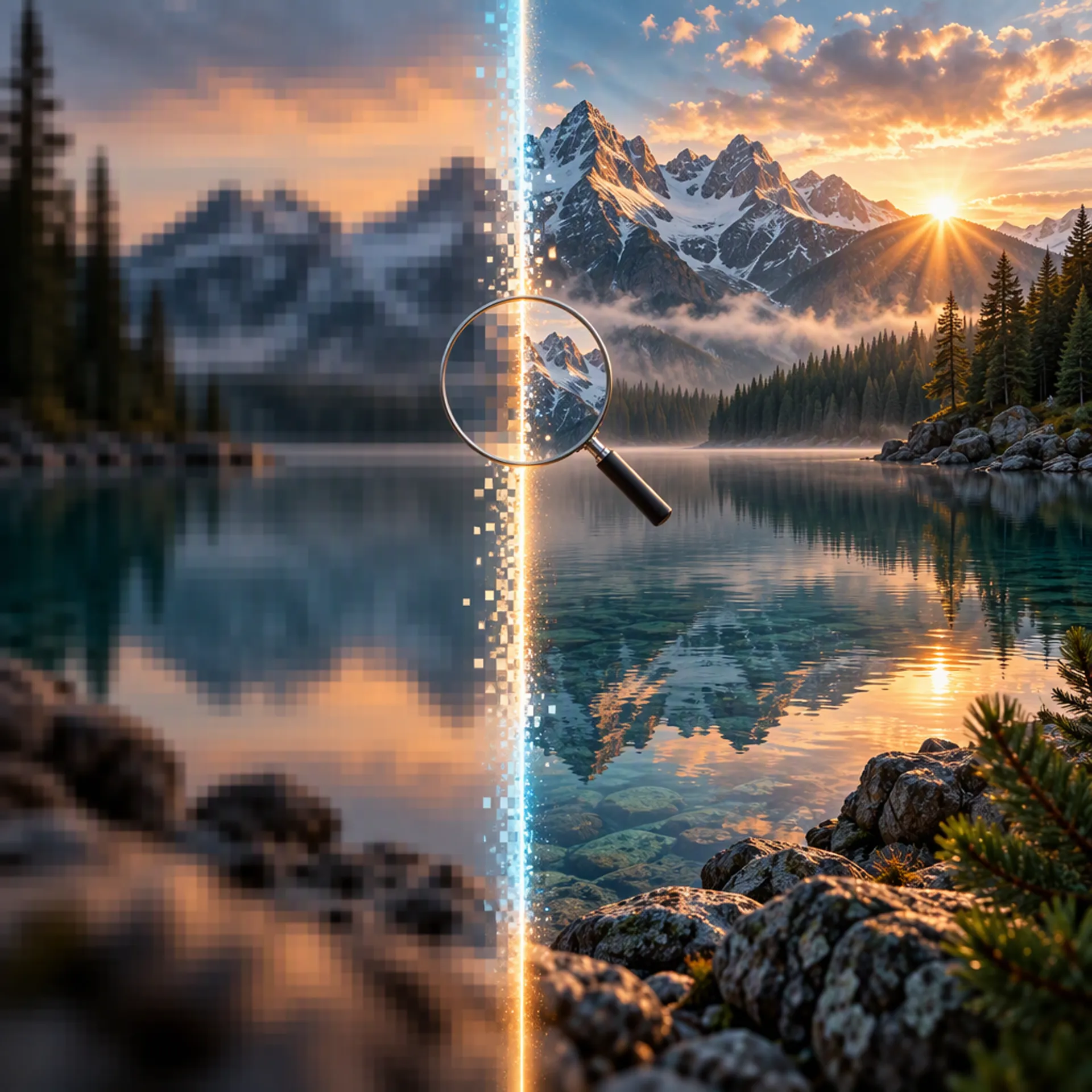
People search for SeedVR2 because it does something the old upscalers could not: when it makes a photo bigger, it also makes it newer. A classic upscaler stretches the pixels you already have and hopes the interpolation looks like detail. SeedVR2, ByteDance's restoration model, is a diffusion refiner — it generates the high-resolution version of your image and was trained adversarially to make that version look like a real photograph of the same scene. Upscaling with it is less like resampling and more like re-shooting your own photo at a higher resolution.
This is the workflow end to end on Moosky: what the model does, which files respond well to it, the click path from upload to export, and the honest list of things it gets wrong. If you only want the tool, the SeedVR2 Image Upscaler page is where you'll land. If you're comparing options first, start at the AI image and video upscaling hub.
What SeedVR2 is, and how it differs from a classic upscaler
Traditional upscalers — bicubic, Lanczos, and the earlier generation of neural ones — share a mental model: the output must be a smoothed-out guess of the input, pixel for pixel. They cannot add information that was never captured, so a 720p face blown up to 4K ends up looking like a very large, very soft 720p face.
SeedVR2 breaks that model in one specific way. It was published as a one-step video restoration model — instead of iterating a diffusion process over many denoising steps, it does a single forward pass, trained adversarially against real high-resolution data. The practical consequence: the output contains texture that wasn't in the input. Skin gains pores. Fabric gains weave. Hair gains individual strands. The image is not a re-stretch; it is a reconstruction that stays faithful to the photo and consistent with how a real 4K photo of that scene would look.
One caveat with that tradeoff, because it shapes everything below: the detail is generated, not recovered. SeedVR2 is conservative — it won't repaint your face into a different person or swap your product's material — but it is inventing plausible high-frequency texture. For product shots, headshots, and print-ready stills that is usually exactly what you want. For forensic "what did the license plate say" work, it is the wrong tool, and nothing that generates detail is the right one.
Read your file first: what upscales well
SeedVR2 makes a good image bigger. It cannot make a bad image honest. Which side of that line your file falls on determines what you should expect.
Strong inputs: sharp-but-small photos (720p–1080p, downsized by a platform — no blur, just missing pixels); AI-generated stills, which come out with clean structure but soft micro-texture that one pass fills in; compression-damaged uploads from chat apps, where mild-to-moderate JPEG damage cleans up well; and old scans or video frames, where grain, edges, and fabric come back convincingly.
Weak inputs: severe blur or motion smear, where the model has to invent more than it can defend and faces can drift; tiny faces in crowd shots, where a three-pixel face is a suggestion rather than a subject; and images containing legible text you care about — more on that failure below.
The Moosky workflow, step by step
The whole run is three choices and one button. On Moosky the model is exposed as the SeedVR2 Image Upscaler composer at /generate/upscale-image/seedvr2-image-api. There is nothing to download or configure: you run SeedVR2 online, entirely in your browser, and the GPU work happens on Moosky's servers. No subscription: it runs on Moosky credits (100 per $1), and the exact price for your image is quoted before anything runs.
Step 1 — Open the composer and upload the still
Go to the SeedVR2 Image Upscaler page and hit "Upscale image." The composer asks for two things: the input image and the target resolution.
Upload a JPG or PNG. Three practical rules: give it the largest file you actually have (don't feed it something you already shrank), avoid screenshots of screenshots, and if the source came from a chat app, pull it from the original device — the compressed copy is a worse starting point than the file in your camera roll.
Step 2 — Pick the target resolution: 2K, 4K, or 8K
Pick by where the output is going, not by "highest is best."
- 2K covers web embeds, blog heroes, and most social posts. It's the cheapest way to confirm the upscale actually improves your file.
- 4K is the general-purpose final: presentations, print to roughly 8x10 inches at 300 DPI, client previews, e-commerce galleries. For most files, this is the right answer.
- 8K is for archival masters and large-format print. On a normal screen it's the same image as the 4K, just with more bytes.
Pricing is flat per run across the three targets, and the composer shows the credit quote before you commit — so run 2K first on every candidate, judge it, and only escalate the files that earned it.
Step 3 — Run it and track the job
Click upscale. The job enters the queue and the portal tracks it from submission through download, so you can leave and come back when it lands. Failed runs refund their credits automatically; nothing is billed for a dead job.
Step 4 — Compare the way people actually judge an upscale
Download the result and inspect two crops at the same pixel zoom, not a full-frame side-by-side:
- One crop on the face. Eyelashes, skin texture, the iris edge. A classic upscaler gives a smooth blur at that zoom; SeedVR2 should survive a 400% look without going waxy.
- One crop on an edge. A window frame or product silhouette. The edge should be crisp and straight — ringing, halos, or a doubled edge mean the model fought your input too hard, and a lower target or a better source is the fix.
- One crop on texture. Fabric, foliage, hair. This is where SeedVR2 earns its keep. If this crop looks identical to the original at the same zoom, your input was already high-res and you've paid for nothing.
The upscale hub ships a before/after slider demoing exactly this on a 1080p video and a 720p product image pushed to 4K — worth studying on a candidate of your own before committing credits.
Step 5 — Export and use the 4K
The download is watermark-free and yours to use, commercially included. Two finishing habits: if you'll post to social, feed the platform your clean 4K rather than an already-degraded file (platforms re-compress anyway, and a better input earns a better output); if it's going to print, check one crop on paper first, because generated texture can look sharper on screen than it prints.
When it fails: the honest list
- Text goes wobbly. Diffusion refiners are unreliable on legible type — signs, captions, package labels. The model sees lettering as texture and repaints it, so a street sign can come back with convincing characters that spell nothing. If legible text matters, composite the original text back after the upscale.
- Crowd faces. Tiny faces get confidently filled in, and "plausibly like the person" is not always right. For anything where likeness matters, run it on a copy and compare closely before adopting the result.
- Watermarks get restored. The model treats an overlay as content and can rebuild it at higher fidelity. Start from an unwatermarked source.
- Already-clean masters get softened. If your source is a sharp 4K original, SeedVR2 has nothing to add and can slightly reinterpret what's there. Upscale when there's a real gap.
Where this fits in your workflow
SeedVR2 is one of two still-image upscalers in the lineup — the higher-fidelity Ultimate Image Upscaler is the other, and video up to 4K runs on FlashVSR — the side-by-side SeedVR2 vs FlashVSR comparison settles which engine your file needs before you spend credits. The pass pairs naturally with adjacent jobs: a blurry old photo gets its SeedVR2 pass first, then heads into the photo-to-video workflow, because a clean 4K still animates noticeably better than a soft one.
Upload the file, pick the target by where the output is going, judge the crops, export when the edges hold. That's the whole loop.
Create with Moosky AI
Turn ideas into finished productions
Access leading AI models and production workflows from one workspace.
Try Moosky AIComments
Comments are reviewed before they appear publicly.
Join the discussion — sign in or create an account to leave a comment.
No approved comments yet. Start the conversation.