Moosky AI field guide
AI Videos for Teachers: A Classroom-Ready Workflow From Lesson Plan to Lesson Video
A classroom video workflow for teachers: paste the lesson plan, approve the beats, get scenes, narration, and captions. With three worked prompts.
On this page
AI Videos for Teachers: A Classroom-Ready Workflow From Lesson Plan to Lesson Video
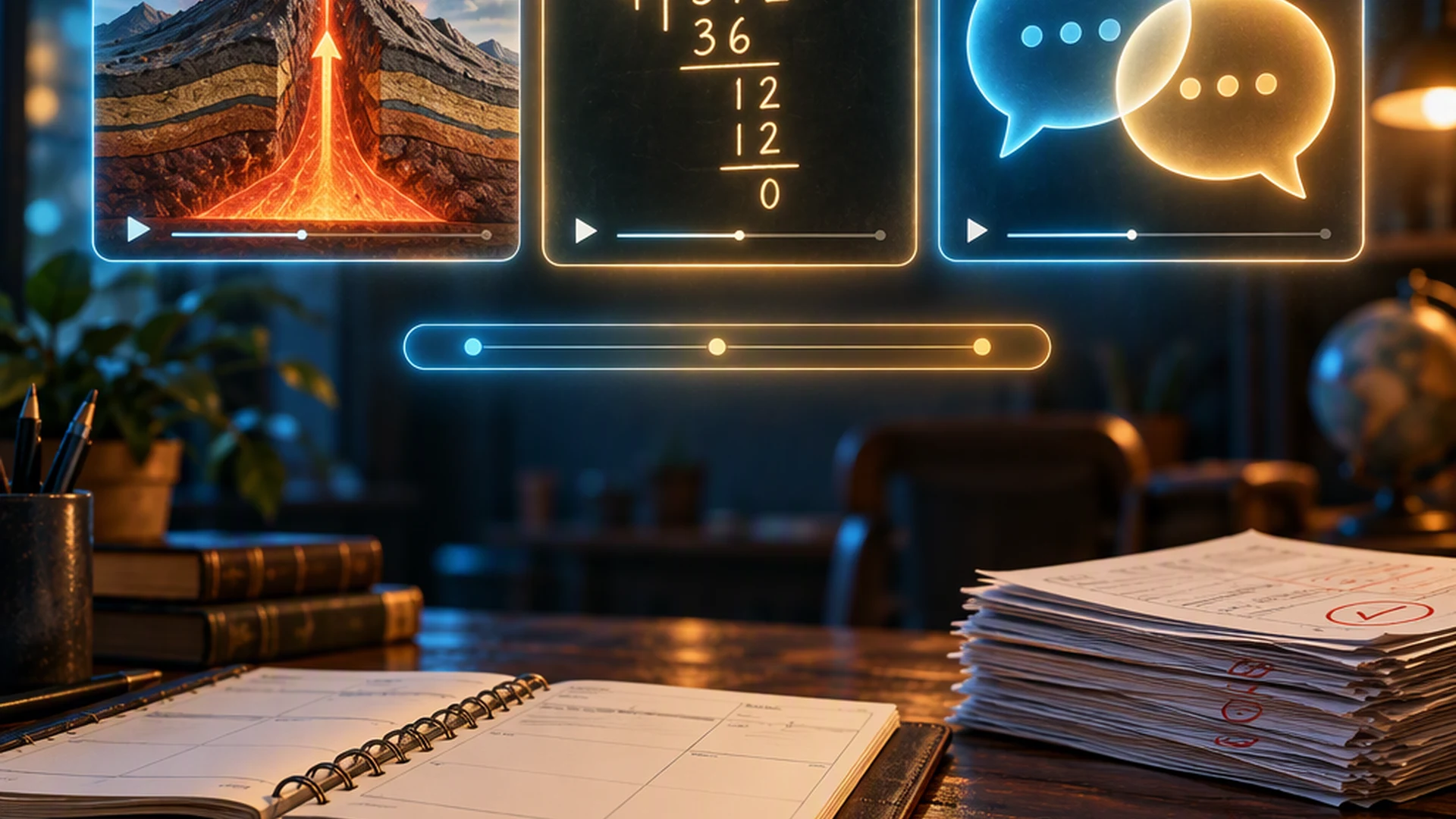
A lesson video does something a handout cannot: it shows a process unfold while a voice names each move. Subduction zones, long division, the beat structure of a sonnet. Most teachers skip video not because the idea is bad but because production cost kills it, and the stock alternatives do not teach the specific step your students keep missing. AI changes the cost side of that trade. On Moosky, the workflow for a teacher's AI video starts from the plan you already wrote, and the whole build costs per clip, not per seat.
This is a practical walkthrough: what to hand the tool, three prompts you can copy, how the accessibility pieces come along for free, and when you should not build a video at all.
The workflow, from lesson plan to lesson video
Moosky's Project Director works like a production assistant rather than a text box that guesses. The loop for a classroom video has five moves:
- Paste the plan, not a wish. Give it the objective, the vocabulary list, the grade band, and, most usefully, the misconception students usually walk in with. One paragraph is enough to start, and you can attach the slide or worksheet the video will go with.
- Approve the storyboarded beats. The agent drafts the video as a short arc: hook, one scene per concept step, a worked example, a comprehension close. You read the beats in chat and edit them before anything renders. Nothing expensive runs until you say go.
- Attach your own materials as references. Upload the diagram, the anchor chart, the lab photo. Scenes generate against your visuals, so the video shows the subject as your students actually meet it, not as a stock library imagines it.
- Let the run produce scenes, narration, and captions. Each beat generates with the host and props held consistent across scenes, then the narrator reads your approved script and timed captions go on in the same run, paced to the grade band you set.
- Re-take the one bad scene. If a beat drifts off-brief, you fix that scene alone; the rest of the lesson, the narration, and the captions stay put. Exports are standard watermark-free MP4, wide 16:9 for the projector and LMS, vertical for the class feed, so the file drops into Canvas, Google Classroom, or Seesaw like any other video.
Billing matters for the classroom math: Moosky runs on a credit balance (100 credits per dollar, no subscription, no seat license), the exact cost of a run is shown before you generate, and failed runs are refunded. A five-to-eight-minute lesson video typically lands between $10 and $30 depending on scene count and re-takes. The planning pass and script edits are cheap; the picture is where the budget goes.
Three worked example prompts
These are real brief shapes, not templates to paste blindly. The pattern in each: objective, misconception or constraint, the reference you attached, and the length you actually want.
1. Elementary science explainer (photosynthesis, grade 5).
Make a 90-second explainer on how plants get their energy, for grade 5. Start with the question "where does a growing tree's mass come from?" Address the misconception that plants eat soil: one scene must show the tree gaining mass while the soil scale does not move. Use attached anchor chart for the vocab (photosynthesis, carbon dioxide, glucose). Keep sentences short for read-along captions. End with a comprehension question the class answers out loud.
Why it works: naming the misconception gives the agent a target, and attaching your own chart means the vocabulary on screen matches the wall your kids already look at. The explainer videos workflow is the same pipeline aimed at a single idea instead of a full lesson.
2. High school history, scene-setting (the 1911 Triangle Shirtwaist Fire).
Build a two-minute scene-setting sequence about the Asch Building on March 25, 1911, for a grade 10 unit on labor reform. Structure: the workspace at closing time, the blocked exit named plainly, the response, then a hard cut to the Commission hearings in black-and-white reference style. Use my attached primary-source images as the visual base for each scene. Narration: factual, no melodrama, one date per sentence. Close with the question the reading will answer: which safety laws followed.
Why it works: history videos fail when the model invents imagery, so here the references do the documenting and the AI does the sequencing and narration. Keep claims sourced to what you attached, and hold the invented visuals to atmosphere (crowds, streetscapes) rather than to facts. See the script-to-video workflow for how to lock the beats before generating.
3. World language practice (Spanish 1, ordering food).
Create a 60-second dialogue video: two teenagers ordering at a food stand in a generic Latin American city. Target structures: pedir + conjugations of querer, la cuenta, está delicioso. Speech slow and clear for Spanish 1, on-screen captions in Spanish, one English gloss scene at the end. Reuse the same two characters across all scenes so students can track the speakers. Then give me an audio-only version of the dialogue with a two-second pause after each line for repeat-after-me drills.
Why it works: repetition in context is the thing a recording does better than a teacher reading twice, and the audio cut becomes a drill asset you did not have to record. The same pipeline covers the language-practice and dubbing angle across the cluster: narration generated in the target language can drive a lip-synced presenter through Moosky Speak, which turns an audio track plus one portrait into a talking video, useful for "native speaker" segments without hiring one.
The accessibility layer you get for free
Two of the hardest students to reach, the ELL kid and the kid whose home is loud or quiet, are covered by defaults rather than extra work. Timed captions ship in every run, so the lesson lands with sound off and gives students who read along a second channel. Narration pacing is a line in the brief, not a re-edit: slower delivery and longer holds on worked steps are requested the way any other instruction is. Files export at classroom legibility (on-screen text sized for the back row in the wide cut), and the vertical cut carries the same captions. If your district requires a dub or a translated audio track, regenerate the narration pass in the target language and mux it against the approved scenes instead of rebuilding the video.
When not to use AI video
Being straight about this saves your credits:
- When the student should be making the artifact. If the standard is "students can explain the water cycle," having them storyboard it beats watching your generated version. The video is for inputs, not for outputs the learner owes.
- When the experiment is the lesson. A video of a titration is not a titration. Simulation and lab stay physical where the skill is physical.
- When the visuals must be accurate representations of record. Generated history scenes invent faces, maps, and buildings. Use real documents for evidence, AI only for mood and sequencing, and say which is which to the class.
- When a slide already works. If the content is a static list of dates, a slide is free and faster. Video earns its cost when something moves, speaks, or unfolds in time.
- When you have not approved the script. Never let the first draft of an AI-written explanation of a contested or exam-relevant topic go in front of students without a read. The review step is free; the misinformation is not.
Start small
The pattern that works is one 90-second opener for the next unit, built from the plan you already wrote, using the diagram you already have. Generate it, watch it once with the captions on, and re-take the scene that drifts. That first run tells you more about the tool than any comparison does, and the workflow for it is documented step by step on the AI videos for teachers page. When you are ready to drive individual clips by hand instead of one brief, the video generator runs the same flagship models per shot, and the 50 prompt examples library is a decent place to borrow camera language for your scene beats.
Create with Moosky AI
Turn ideas into finished productions
Access leading AI models and production workflows from one workspace.
Try Moosky AIComments
Comments are reviewed before they appear publicly.
Join the discussion — sign in or create an account to leave a comment.
No approved comments yet. Start the conversation.