Moosky AI field guide
How to Upscale a Video with AI: a 480p-to-4K Workflow (With Honest Costs)
How to upscale video to 4K on Moosky with FlashVSR: upload, pick the target, and pay per second — with the real credit table and honest limits.
On this page
How to Upscale a Video with AI: a 480p-to-4K Workflow (With Honest Costs)
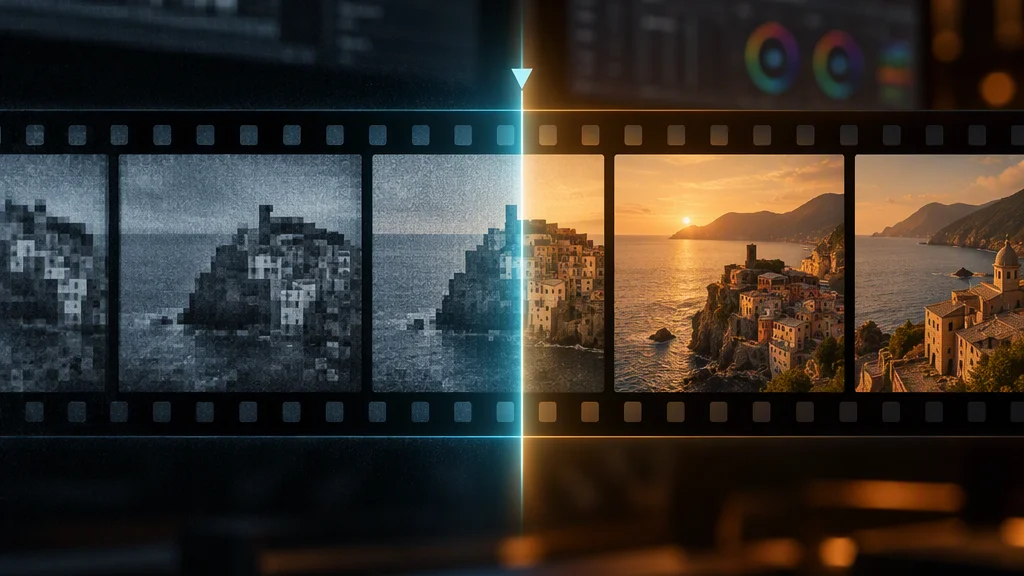
Short answer first: on Moosky you upload the clip, pick a target of 720p, 1080p, 2K or 4K, and pay by the second of output — a 1-minute clip pushed to 4K costs 250 credits ($2.50), and the exact quote appears in the composer before anything runs. The engine is FlashVSR, a purpose-built video upscaler, and the whole loop is four decisions and one button on the AI video upscaler page.
Upscaling video is a different problem from upscaling a photo, and the price reflects it: every frame is a photo, and the model also has to keep the frames consistent so faces don't boil and edges don't shimmer between cuts. That per-frame-plus-temporal work is exactly why video is billed per second of output rather than per image. This guide covers the workflow, the credit math with real numbers, and the failure list nobody else publishes.
First: a video upscaler, not an image upscaler on a loop
People reach for a photo upscaler because it's what they know. Run SeedVR2 (our still-image refiner, up to 8K) on a clip frame by frame and you get a specific artifact called flicker: each frame's generated texture is slightly its own invention, so fabric, skin, and foliage visibly boil between frames. A video upscaler exists because it reasons across frames — motion and temporal detail stay coherent.
The rule is simple. Source is a moving clip → FlashVSR on Moosky. Source is a single frame or photo → the SeedVR2 image workflow. Both engines share one credit balance, and the side-by-side comparison covers the edge cases.
FlashVSR on Moosky handles clips from 5 seconds to 10 minutes, with targets of 720p, 1080p, 2K, and 4K. Everything below assumes you have a clip that already exists — a home video, a low-res download, or a render from a free AI video generator that came out soft.
Read the clip first: what upscales well
A video upscaler recovers detail that compression destroyed, not detail the camera never captured. Which side of that line your file sits on determines what you should expect.
Strong inputs: platform-mangled clips (the 480p copy TikTok or WhatsApp saved — the pixels were thrown away, not never there), old camcorder and phone footage, dark-compressed downloads, and AI renders that are structurally clean but mushy at 720p.
Weak inputs: footage with real motion blur (the model can't reconstruct a sharp frame from a smeared one), very heavy blocking where a face is a mosaic rather than a face, and tiny details you need legible — a license plate three pixels high stays unreadable at any target. The honest expectation: 480p to 4K makes your clip look like a clean HD master blown up for a 4K screen, not like footage shot on a cinema camera.
The workflow, step by step
The tool lives at /generate/upscale-video/flashvsr-video-upscaler, reachable from the video upscaler page. No subscription: Moosky runs on prepaid credits (100 per $1), new accounts get free signup credits, and failed runs refund automatically.
Step 1 — Upload the best copy you actually have
Give it the largest file you own — not the compressed one a chat app made for you. Containers to avoid at this stage: anything already re-encoded twice, and screen recordings of playback (you're upscaling a moiré pattern). One prep habit earns more than any setting: if your source has a black border or letterboxing baked in, crop it before uploading. The model spends its resolution budget on the bars otherwise.
Step 2 — Pick the target by where the clip is going
Not by "highest is best" — each tier roughly costs the next tier's price again (the table is below).
- 720p is the scout: the cheapest way to see whether FlashVSR actually improves your footage before committing to an expensive target.
- 1080p covers most social feeds and web embeds. For phone viewing, this is usually the real finish line.
- 2K is the share-for-screen sweet spot — presentations and sites that serve a bit under native 4K.
- 4K is for large screens, client masters, and archives. On a normal laptop it will look identical to 2K; the difference shows on a wall.
Step 3 — Read the quote, then run the math you can check yourself
Credits are billed by the second of output, which makes every run predictable. The per-second rate runs from 1.6 credits at 720p to 4.2 at 4K; the total is rounded up at the end:
| Target | Credits / second | 10-second clip | 1-minute clip | 2-minute clip |
|---|---|---|---|---|
| 720p | ~1.6 | 16 | 94 | 188 |
| 1080p | ~2.3 | 24 | 141 | 281 |
| 2K | ~3.1 | 32 | 188 | 375 |
| 4K | ~4.2 | 42 | 250 | 500 |
Worked examples, at 100 credits = $1: a 30-second 1080p upscale is 71 credits (71¢). A 90-second clip to 2K is 281 credits ($2.81). A 2-minute home video pushed to 4K is 500 credits ($5.00). A 10-second social clip to 720p costs 16 credits — free signup credits cover your first few trials entirely.
Two footnotes so the numbers survive contact with reality: the whole-run total rounds up to the nearest credit, so expect ±1 against the table; and clips shorter than 5 seconds are billed as 5 seconds, so trim dead frames from the head and tail before running — the seconds you delete are the credits you don't pay.
The composer shows the exact quote for your clip and target before you click run. The number in the table above and the number in the composer should agree; when they don't, trust the composer and lower your target or trim your clip.
Step 4 — Judge motion, not just frames
Download the result and watch three things a still-image comparison can't show you:
- The pan test. Any camera or subject motion. Texture should stay glued to surfaces — drifting, crawling fabric means the input was too degraded and a lower target is the honest fix.
- The cut test. Watch across an edit. Faces after the cut should look like the same person's face, not re-rendered ones.
- One paused frame at 400%. Skin, hair, text edges. This is the same crop-judgement the SeedVR2 image guide teaches — if the still frame doesn't survive the zoom, the clip won't either.
Run 720p on the first candidate, judge it, and only escalate clips that earned the more expensive targets.
When it fails: the honest list
- Legible text softens. Small captions, street signs, and package labels come back cleaner but not sharper-typography clean; burned-in subs are best re-burned after the upscale.
- Severe motion blur stays blurred. The model enhances what exists; it can't de-strobe or de-smear a pan shot.
- Watermarks get restored. An overlay is treated as content and upscaled faithfully — same as the image engines. Start from a clean source.
- The 10-minute cap is real. Longer footage means splitting it into segments (free tools like ffmpeg make that a one-line job), running each, and re-joining — each segment pays its own per-second bill, which is why trimming matters twice on long projects.
- Already-clean sources gain nothing. A sharp 1080p master pushed to 4K is a larger file, not a better video. Upscale when there's a visible gap.
Where this fits
Video upscaling is usually the last pass, not the first: generate or record the clip, fix the stills with the SeedVR2 image workflow when a frame matters, and run the finished clip through FlashVSR only when the delivery screen justifies the tier. Every engine — image, video, voice — runs off the same credit balance from the upscale hub.
Upload the best copy you have, trim the dead seconds, scout at 720p, pay for the tier your audience's screen actually needs. That's the whole loop.
Create with Moosky AI
Turn ideas into finished productions
Access leading AI models and production workflows from one workspace.
Try Moosky AIComments
Comments are reviewed before they appear publicly.
Join the discussion — sign in or create an account to leave a comment.
No approved comments yet. Start the conversation.