Moosky AI field guide
How to Edit a Video with AI: A 2026 Workflow Guide (Trim, Reorder, Subtitles, B-roll)
Edit a video with AI in one browser tab: trim, reorder, regenerate one shot, upscale to 4K, add voice-over and subtitles — with the honest credit cost per run.
On this page
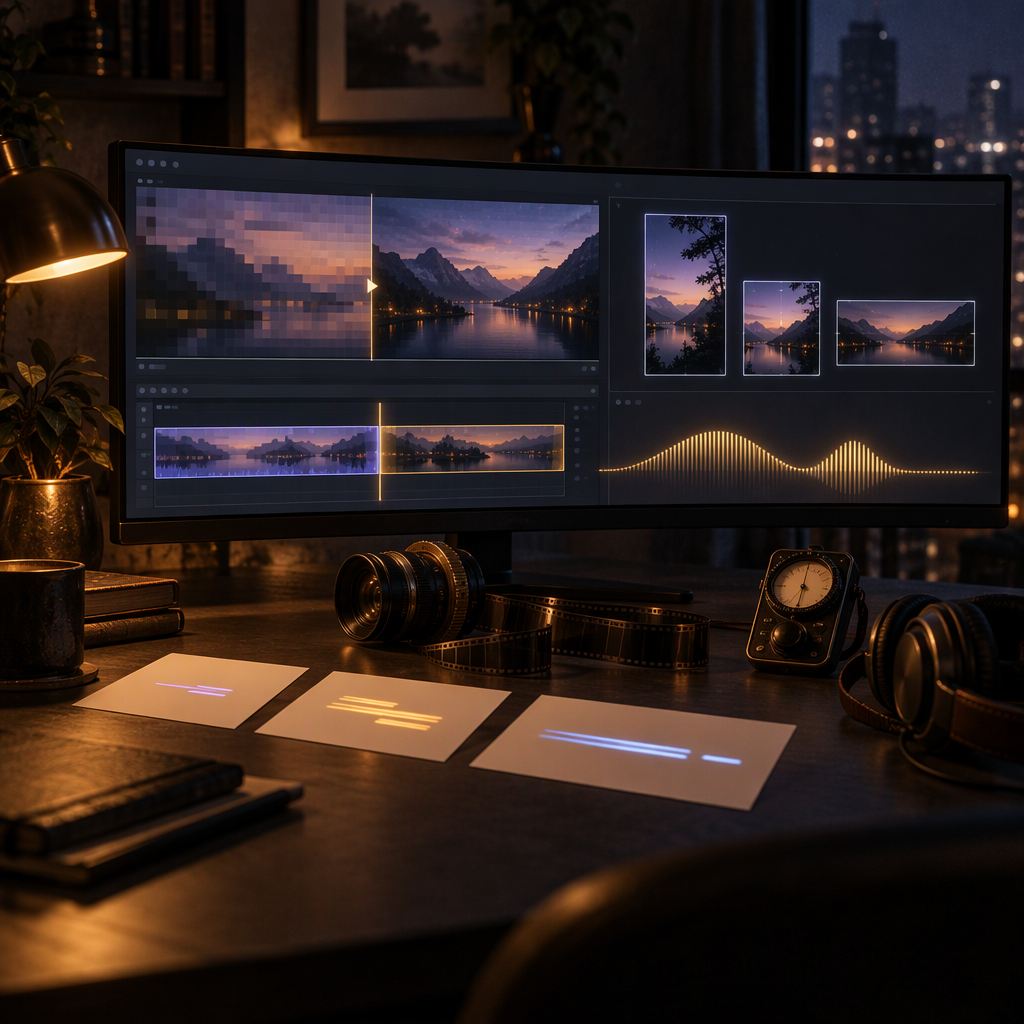
Editing a video with AI in 2026 does not mean one thing. For some people it is trimming and reordering clips. For others it is pushing a soft take to 4K, re-cropping a vertical Reel, or re-recording a voice-over without going back to the microphone. What changed this year is that all of those passes can happen in one browser tab, on the same project, with no desktop editor to install and no subscription to rent. This guide walks the whole cut-to-clip flow — upload your footage, trim, reorder, regenerate the one shot that failed, lay in voice and burned-in subtitles, finish with a clean multi-ratio export — using Moosky as the concrete example, and at the end compares the route with a traditional NLE so you pick by your work, not by the novelty. This is the doing side of the AI Video Editor page: the workflow and the bill, not the pitch.
Quick answers
How do you edit a video with AI? Four passes on the same project: trim and reorder clips, regenerate just the shot that failed with a corrected prompt, upscale the resolution with the video upscaler, then lay voice-over and burned-in subtitles. The regeneration and quality passes are the ones a classic editor does not have — they need models, not plugins.
What is the best AI for editing video? The one that covers all four passes in a single browser tab with nothing to install. If your job is refining generated takes or finishing your own clips — cut, regenerate, push to 4K, export 9:16 / 1:1 / 16:9 with no watermark — the flow below does it all on one credit balance. If you need frame-accurate multicam sync or keyframed motion graphics on existing footage, a desktop NLE is still the right tool.
What does it cost to edit a video with AI? On Moosky, 100 credits = US$1 and you pay per run, not per month. A 5-second clip re-generated on a budget engine starts at 39 credits (US$0.39); a 30-second clip pushed to 4K is roughly 125 credits (US$1.25); a 30-second cut built from four beats plus a voice-over lands around US$8 on a balanced draft-plus-hero mix. Every run quotes its cost on screen before it dispatches, and failed runs refund to your balance.
Can I edit a video I shot myself, not just AI clips? Yes. Drop your camera clip, screen recording, or social download into the same workspace as the generated takes — trim, re-crop to other ratios, and upscale all run on your own footage; generation is optional. What it does not do is strip baked-in subtitles or watermarks off someone else's video.
Are AI-edited videos usable on monetized channels and paid ads? Yes. Exports carry no watermark and are cleared for commercial use, including monetized channels and ad placements; the Reel, the square, and the hero all come off the same project.
What "editing with AI" actually means: four passes
An AI-assisted editing flow has four kinds of pass, and it is worth separating them before you pick a tool:
- The cut pass. Trim silence, reorder scenes, set the pace. This is ordinary editing, just assisted.
- The regeneration pass. The real new thing. When a shot comes out wrong you do not rescue it with filters — you ask for just that shot again with a corrected prompt, and it lands back in the same project.
- The quality pass. Scale resolution (720p to 4K), clean compression artifacts, recover detail on old footage. This is where the video upscaler earns its credits.
- The audio pass. Generated or cloned voice-over, burned-in subtitles for silent scroll, a basic mix.
Classic editors do the first pass well and, if you are lucky, the fourth. The second and third are the ones that justify switching tools today, because they need models, not plugins. For the cut pass you can keep your desktop habits — most people do; what the browser loop adds is the regeneration and the quality pass without exporting files between an editor and a generator.
What each surface does (and what it costs)
On Moosky these passes do not live in five separate apps — they are surfaces of the same workspace, billed in credits per run (100 credits = US$1, and credits never expire). Here is the quick view:
| Pass | Surface in Moosky | What you feed it | What comes out | Cost |
|---|---|---|---|---|
| Upload and trim | The browser AI Video Editor | Your own clip or a generated take | Cuts, reorders, and re-crops inside the same project | Credits per render |
| Still frame edits | The GPT Image 2.5 image-edit surface | The one frame that is wrong | The same shot fixed as a still before it goes back into the cut | About 2 to 7 credits per still |
| Regenerate one shot | The video engines (Seedance 2.5, Wan 3.0, LTX 2.5) | A corrected prompt for the failed shot | The new take, in the same project and balance | Credits per clip, quoted before generation |
| Upscale to 4K | The video upscaler with FlashVSR | The clip or frame you want cleaner | The same shot at a higher resolution, no watermark | Credits per run, billed per second of output |
| Voice-over | Project Director and the voice models (CosyVoice, Fish Audio, Qwen TTS) | Your script or your key points | Audio you approved in chat before anything renders | Credits per audio, roughly 4 per 1,000 script characters |
| Export | The same project | The final cut | 9:16, 1:1, and 16:9 versions from one timeline | Included in the render |
One honesty note before the walkthrough: AI editing on Moosky is generative and re-framing, not pixel-level frame surgery. If you need multicam sync with frame precision or keyframed motion graphics on existing footage, a desktop NLE is still the right tool. What Moosky wins is when the edit is about refining generated takes or finishing your own clips with upscale and re-frame passes.
The cut-to-clip workflow, step by step
Step 1: bring your footage (or don't)
The browser editor accepts clips you upload, not only generated content. A camera clip, a screen recording, or a social download enters the same workspace as the engine clips. This matters because most AI-editing tutorials assume everything comes from a prompt; in practice the real job mixes your own footage and generations. From the AI Video Editor you can open the workspace, review the engines, and prep shots without installing anything — the render costs credits, and the cost shows on screen before each run.
Step 2: trim and reorder without exporting files
The editor's logic is a closed loop: you cut a beat, flag the shot that is not working, and ask for that one shot to regenerate without moving anything else. There is no intermediate export between "the editor" and "the generator" because they are the same interface; every take stays one click away in the dock. For the cut itself you only need pacing decisions — what comes in, what goes out, how long the hook holds — and that does not take a 40-track timeline. When you want a still frame from a clip (a thumbnail, a poster, a clean hero image to drive a later shot), the GPT Image 2.5 image-edit guide covers fixing a frame as a still before it goes back in.
Step 3: regenerate only the shot that failed
This is where the flow separates from a classic editor. In an NLE, a shot with broken physics or a face that drifted mid-take gets covered with a cut or thrown out. In the generative flow you return to that shot's prompt, fix the instruction, and re-render — the cost is credits, not an afternoon on the timeline. Which engine to use per shot:
- Wan 3.0 for motion that survives a close look — weight, collisions, and camera moves that hold frame to frame when you trim tight. It is the hero-beat engine and it bills lower per clip than the flagship tier.
- LTX 2.5 for the cheap draft. It renders fast and cheap, so you can cut five versions of a hook, kill four, and promote the winner to a premium engine on the same balance.
- Seedance 2.5 for one continuous cinematic take or a 4K delivery master from a start frame — the length-and-reference engine and the resolution engine, at a premium.
If your regeneration prompts keep coming out weak, the problem is usually structure, not the model: the AI video prompt guide breaks down the five-slot format that works across engines.
Step 4: add b-roll and stills before you upscale
B-roll in this flow is generated, not stock-hunted. A cutaway beat — hands on a product, a wide establishing shot, a texture insert — gets prompted the same way as any other clip and dropped into the timeline. For stills (a poster frame, a cover, a freeze to push a beat), generate or edit them on the GPT Image 2.5 surface at a few credits apiece, review them, then animate the keeper if the beat needs motion. Keeping the stills cheap and the animation pass for the shots you actually approve is how you stay under budget on a cut with a lot of beats.
Step 5: upscale to 4K before you export
The take you approved usually sits at generation resolution (720p or 1080p). The video upscaler — FlashVSR, the video sibling of the SeedVR2 image refiner — lifts the finished clip before export: the step desktop suites hide behind a pro-tier license is one credit run here, watermark-free and cleared for commercial use. Upscale is the last pass, not the first: trim dead frames off the head and tail first, because clips are billed per second of output and clips under 5 seconds bill as 5. The full cost table and the failure cases (motion blur, heavy blocking, tiny detail you need legible) are in the how-to-upscale-a-video guide.
Step 6: voice-over and subtitles for silent scroll
If the cut needs narration, the path is Project Director, the multi-agent planner: you describe the video in your language, it proposes the scene plan and the script, and the voice is generated (or cloned from your own sample) but nothing renders until you approve the script and the audio in chat. The voice model that costs the least to audition is CosyVoice — enrollment is free and synthesis bills per script character, about 4 credits per 1,000 characters, so a 60-second voice-over script lands around 29 credits (US$0.29); the CosyVoice cloning guide walks the sample-to-voice flow. Burned-in subtitles generate from the script's own words and embed into the video, not as a sidecar file — which makes the clip readable with the sound off, which is how most of the feed is consumed. The from-zero walkthrough is the Project Director first-video guide.
Step 7: export three ratios from one cut
The same project yields the 9:16 Reel, the 1:1 feed square, and the 16:9 hero for web: re-framing is a run, not a re-timeline. No export carries a watermark and all are cleared for commercial use, monetized channels and paid ads included.
The credit cost per deliverable, before you render
Everything below is quoted in Moosky credits at a fixed 100 credits = US$1, bought in packages, no subscription, never expiring. The composer shows the exact number on the run button before anything dispatches, and failed runs refund themselves. These are the live list prices already published on the engine guides, so you can budget a session instead of guessing:
Hero shots (Wan 3.0) — flat duration × resolution, no base fee:
| Clip length | 480P (draft) | 720P | 1080P (hero) |
|---|---|---|---|
| 3s (default) | 24 | 47 | 93 |
| 5s | 39 | 77 | 154 |
| 10s | 77 | 154 | 308 |
| 30s (max) | 231 | 462 | 924 |
Drafts and cheap iterations (LTX 2.5) — billed per second of output: a 4s/720P draft is about 66 credits ($0.66), an 8s/720P draft about 121 ($1.21), a 6s/1080P clip about 130 ($1.30), and a 10s/4K master about 472 ($4.72). The 1440P and 4K tiers cap a clip at 10 seconds.
Stills (GPT Image 2.5) — a 1K square bills about 1 credit at low, 2 at medium, 7 at high; a 4K still runs 2 / 4 / 14 across the tiers. Iterating at medium, then re-rendering the keeper once at high, is the cheap pattern.
Upscale (FlashVSR) — about 1.6 credits per second at 720p rising to 4.2 at 4K. A 30-second 1080p pass is 71 credits ($0.71); a 30-second 4K pass is about 125 ($1.25); a 1-minute 4K pass is 250 credits ($2.50). Clips under 5 seconds bill as 5.
Voice-over (CosyVoice) — roughly 4 credits per 1,000 script characters, so a 60-second voice-over is about 29 credits (~$0.29). Script and audio passes are cheap; the picture is where the budget goes.
A worked bill: a 30-second social cut from your own clips. Four beats. Draft the two ideas you are unsure about at LTX 720P (66 + 121 = 187). Render the two keepers at Wan 1080P 5s (154 + 154 = 308). Generate one b-roll insert at Wan 1080P 3s (93) and one 4K hero still for the cover at GPT Image high (14). Run the whole finished clip through FlashVSR to 4K (125). Lay a 60-second CosyVoice voice-over (29). Total: about 756 credits, about $7.56, on a balance you can top up weekly. The same brief at an editor plus a stock library and a session musician is a multi-hundred-dollar quote before revisions. If a beat is not worth the hero-tier price, it was not worth approving at draft tier either — that is the filter. The per-usable-clip economics, including why you budget for re-takes, are worked out in What a usable clip actually costs.
When this route wins and when it does not
| Your job | The right tool | Why |
|---|---|---|
| AI clips you have to refine (regenerate shots, upscale, re-format) | Browser AI editor | The generate–cut–regenerate loop lives in one tab |
| Your own footage to clean up and adapt to several formats | AI editor + video upscaler (FlashVSR) | Upload, one run to 4K, three ratios exported |
| Multi-scene videos with the same recurring face or product | Project Director on Seedance/Wan | Keeps the face, wardrobe, and product reference across dozens of clips |
| Frame-accurate multicam sync or keyframed motion graphics | Desktop NLE | The model does not replace frame-by-frame surgery there |
| A single cinematic hero shot, no timeline | Pure generation engine | If there is no edit, you do not need the editor |
For the decision between pay-per-clip and an editor subscription in full (the monthly-rent comparison at the credit level), the honest numbers are in the pay-per-clip vs subscription guide.
Frequently asked questions
Can I edit a video I uploaded, not just generated clips? Yes. Attach your clip and it enters the same workspace — trim, re-crop to other ratios, and upscale with FlashVSR run on footage you bring; generation is optional.
Does the editor remove baked-in subtitles or a watermark from someone else's video? That is not one of Moosky's surfaces, so do not count on it. What it does do is export clean — your renders never carry a watermark — and add its own burned-in subtitles when the flow needs them.
Do I need a powerful computer? No. Generation and rendering run in the cloud; your browser only plays back previews. A Chromebook edits the same project as a workstation.
What is GPT Image 2.5 doing in a video-editing workflow? It fixes frames cheaply before motion. A bad still — a poster, a product shot, a clean hero frame to drive a later shot — costs a few credits to edit or regenerate on the image surface, so you approve it before you spend motion credits animating it. The image-editing guide has the credit tiers.
Which voice model should I use for the voice-over? CosyVoice when you are cloning one specific person on a budget (free enrollment, per-character billing, ~4 credits per 1,000 characters). The best AI voice generators comparison covers Fish Audio and ElevenLabs for the multilingual and final-read cases.
How long before a cut like this is ready? The first time, the learning curve is approving scripts and prompts, not memorizing keyboard shortcuts — almost none of the heavy work is on your timeline, it is a run in the cloud that quotes its cost before it starts.
The working rule: bring your footage as it is, cut first, regenerate after only what came out wrong, upscale at the end, and export the three formats in one go. If the project is more than one shot and a character that reappears, let Project Director build the scene plan and correct it in chat. And if what you have is a single clip to fix rather than a sequence to assemble, the upscaling guide and the image-editing guide cover the other half of the work.
Create with Moosky AI
Turn ideas into finished productions
Access leading AI models and production workflows from one workspace.
Try Moosky AIComments
Comments are reviewed before they appear publicly.
Join the discussion —sign inorcreate an accountto leave a comment.
No approved comments yet. Start the conversation.